
Set your availability and time zone
Patients can only book inside the hours you publish. Hours are per prescriber, so each provider in the practice sets their own.
- Open Video visits and click Availability.
- Under Weekly hours, pick a day, a start time, and an end time, then click Add. Repeat for each day you see patients. Remove a window with the small ×.
- Under Date exceptions, block a whole day (a holiday), block part of a day, or add an extra window on a day you normally do not work.
- Set the practice time zone in Rates & billing under Cancellation policy. Every slot, reminder, and calendar cell is shown in that zone, for you and for your patients.
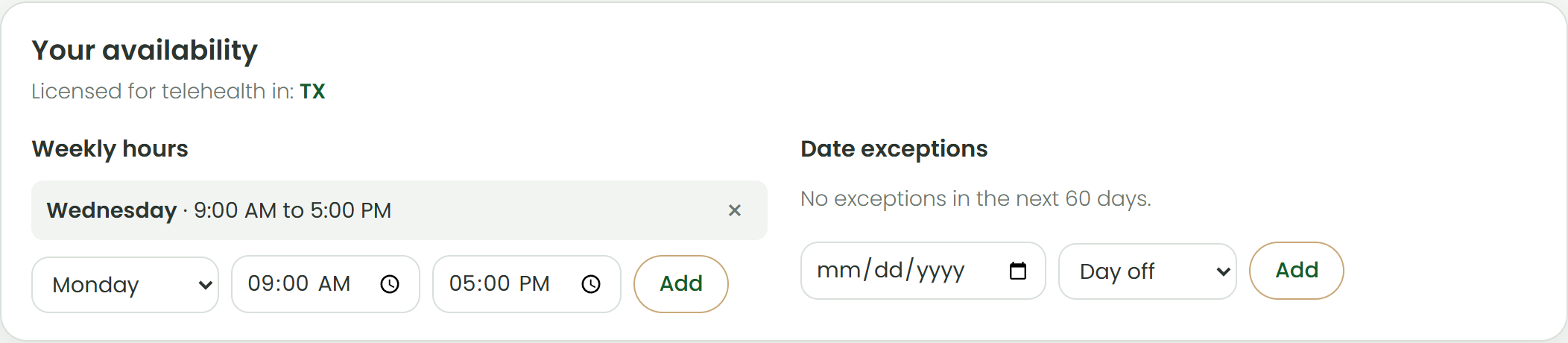
Booking also requires an active telehealth license in the patient’s state. The editor shows which states you are licensed in; add licenses under Account.
What happens next
- Open slots appear to your patients in 20-minute steps within the next two weeks.
- Existing visits and blocked time are never offered twice.
Was this helpful?Tell us what is missing